
Create Your Account
Account setup and login
Creating an AttentionPad account is the first step to accessing token sales, tracking allocations, completing account requirements, and participating across the platform.
AttentionPad uses Privy for account creation and login, giving users multiple sign-in options including email, social login, Discord, X / Twitter, Google, and wallet connection.
Step 1: Open AttentionPad
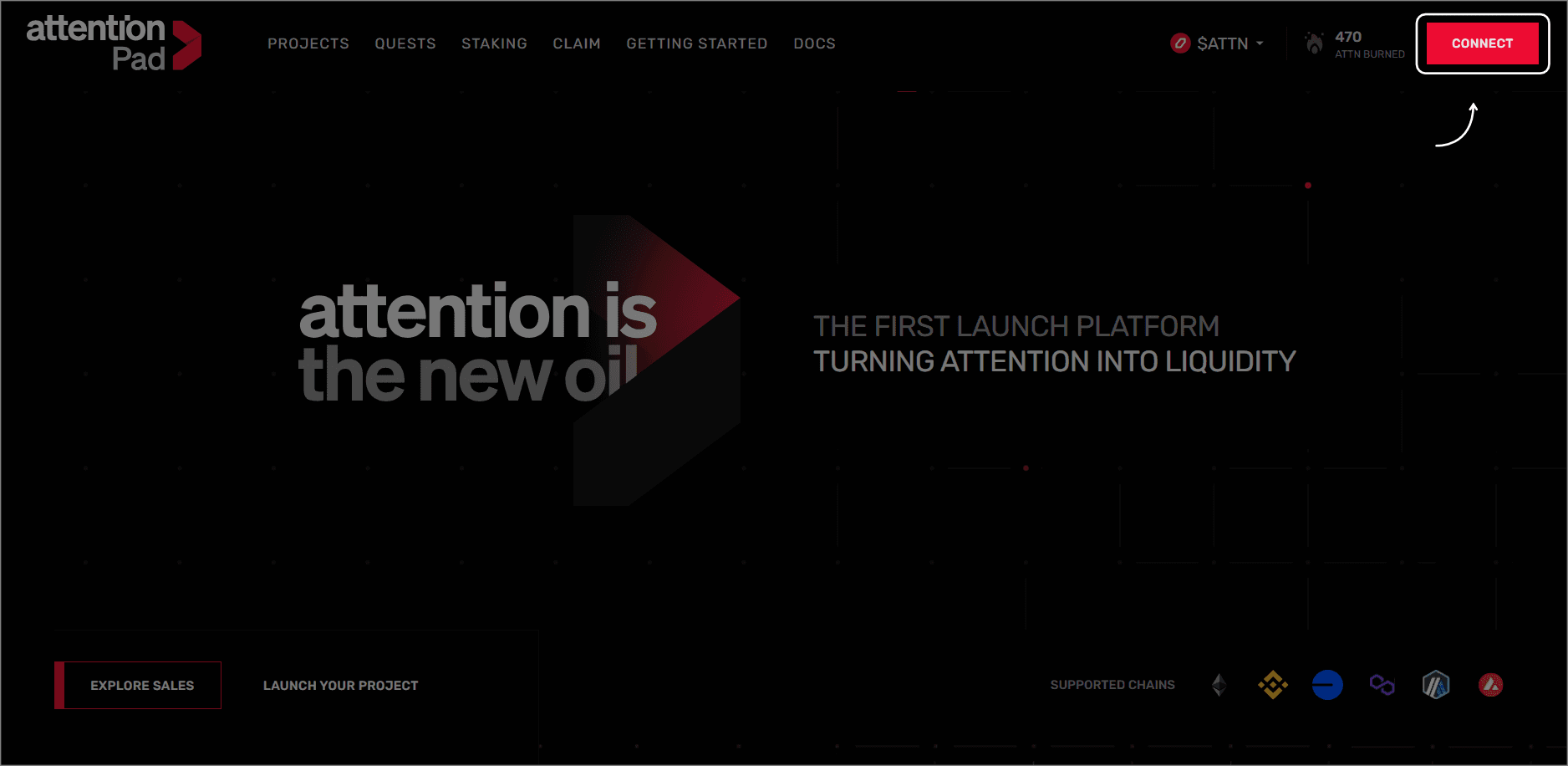
Go to the official AttentionPad website and click the CONNECT button.
Step 2: Choose a Login Method
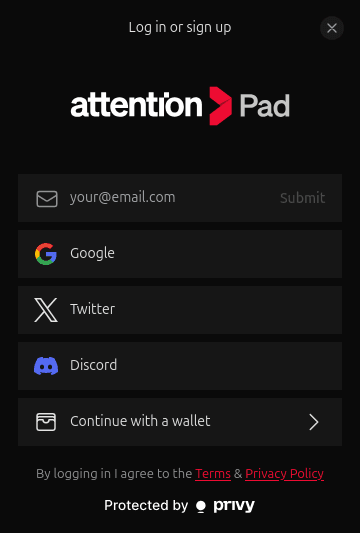
The login window will show the available sign-in methods.
You can create or access your account using:
- X / Twitter
- Discord
- Continue with a wallet
Embedded Wallet Creation
Regardless of the login method you choose, Privy automatically creates an embedded wallet for your AttentionPad account.
This embedded wallet is linked to your AttentionPad profile and allows you to access wallet-based platform features. If you sign up with an external wallet, that wallet can also remain connected to your account, but the embedded wallet is still created as part of the account setup.
Before participating in token sales, you will need to make sure that the wallet you intend to use has enough funds to complete the transaction. This may require topping up your embedded wallet or using a funded external wallet with the supported asset required for the sale, such as a stablecoin or the relevant network token for transaction fees.
Step 3: Sign In with Email
To sign in with email, enter your email address in the email field.
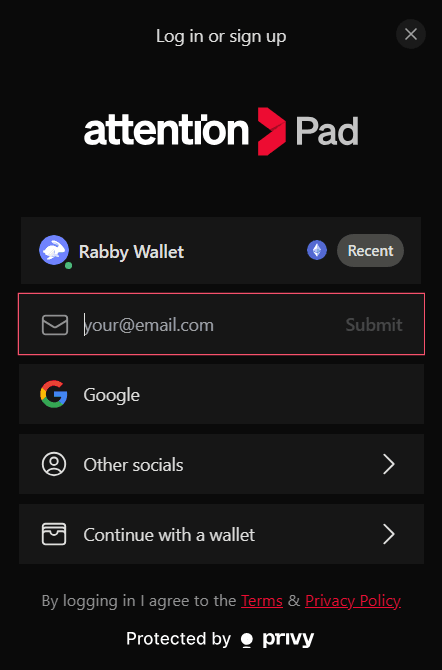
After entering your email address, click Submit.
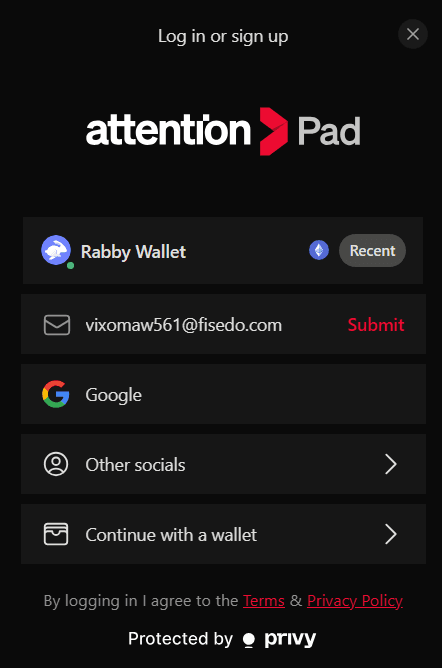
Privy will send a confirmation code to the email address you entered. Check your inbox for an email from Privy, then enter the code in the confirmation screen.
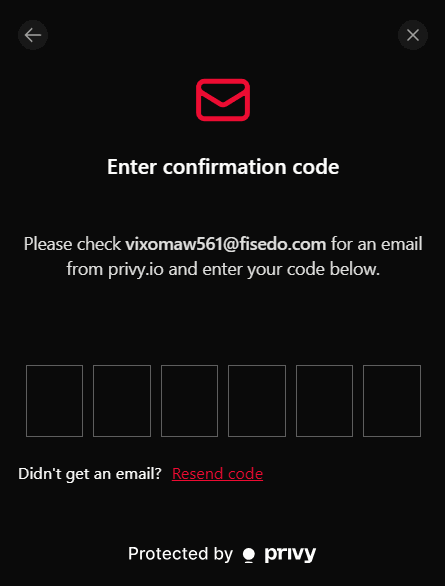
If you do not receive the email, check your spam folder or click Resend code from the confirmation screen.
Once the code is accepted, your email will be verified and you will be signed in to AttentionPad.
Step 4: Sign In with Google, X / Twitter, or Discord
You can also create your account using one of the supported social login methods.
Select your preferred provider and approve the connection when prompted by the external login window.
Social login can make future access faster, but you should always make sure you are signing in through the official AttentionPad website.
Step 5: Continue with an External Wallet
You can also sign in or participate using an external crypto wallet.
Select Continue with a wallet, choose your preferred wallet, and approve the connection from your wallet extension or mobile wallet app.
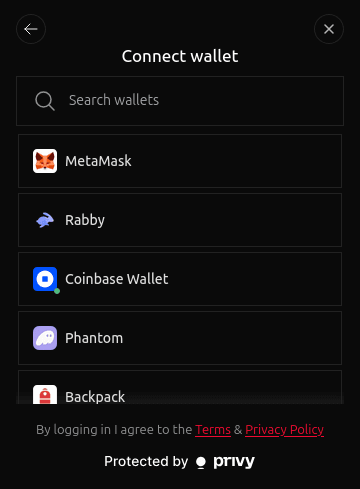
After selecting your wallet, AttentionPad will show a Sign to verify screen while it waits for confirmation from your wallet.
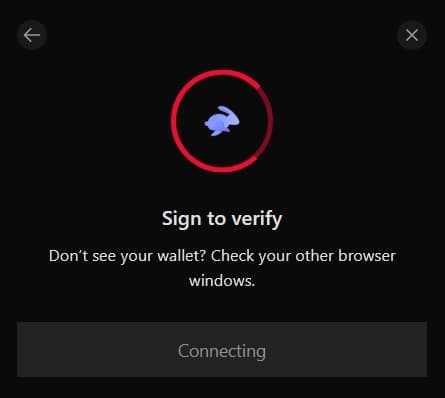
Open your wallet extension or mobile wallet app and review the signature request. Approve the request to confirm that you control the selected wallet and complete the connection.
If you do not see the wallet prompt, check your browser extension, other browser windows, or your mobile wallet app.
This signature request is used to verify wallet ownership. It does not transfer funds by itself, but you should still review every wallet prompt carefully before approving it.
A funded embedded wallet or connected external wallet may be required for participating in token sales, receiving allocations, claiming tokens, staking, or interacting with on-chain features.
Step 6: Add an Email Address
If you sign up using a wallet, Google, X / Twitter, Discord, or another login method other than email, AttentionPad may ask you to connect an email address to your account.
Connecting an email is recommended because it helps you receive important account updates and may help with account recovery if you lose access to your wallet or social login.
When prompted, click Yes, Connect to add an email address.
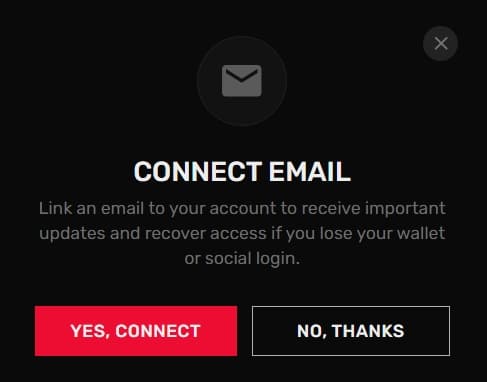
Enter the email address you want to link to your AttentionPad account, then click Submit.
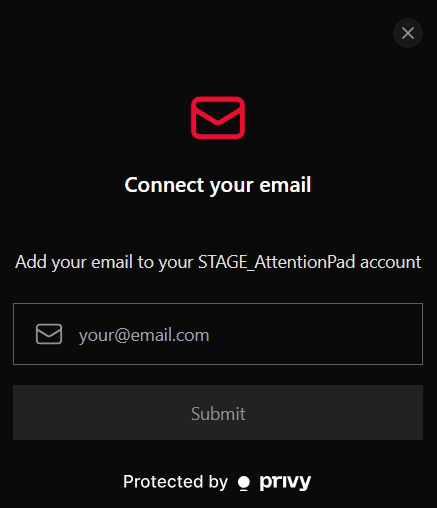
Privy will send a confirmation code to the email address you entered. Check your inbox, copy the code, and enter it in the confirmation screen.
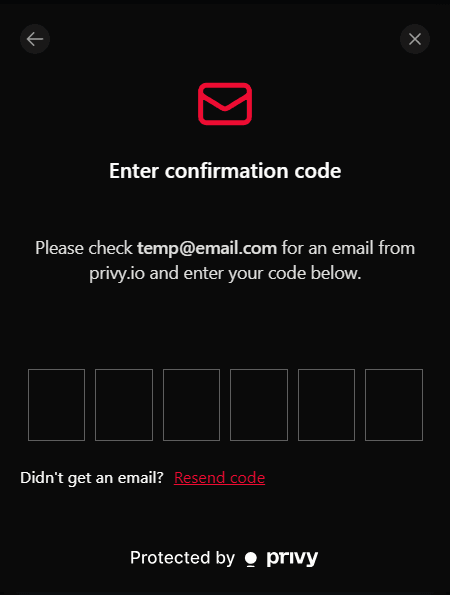
Once the code is accepted, your email will be linked to your AttentionPad account.
Step 7: Confirm Your Account Access
After signing in, you will be redirected to your Account Overview page.
The Account Overview page gives you a summary of your AttentionPad activity and account status. From here, you can review your profile, check your KYC status, track your participation history, and access key platform features.
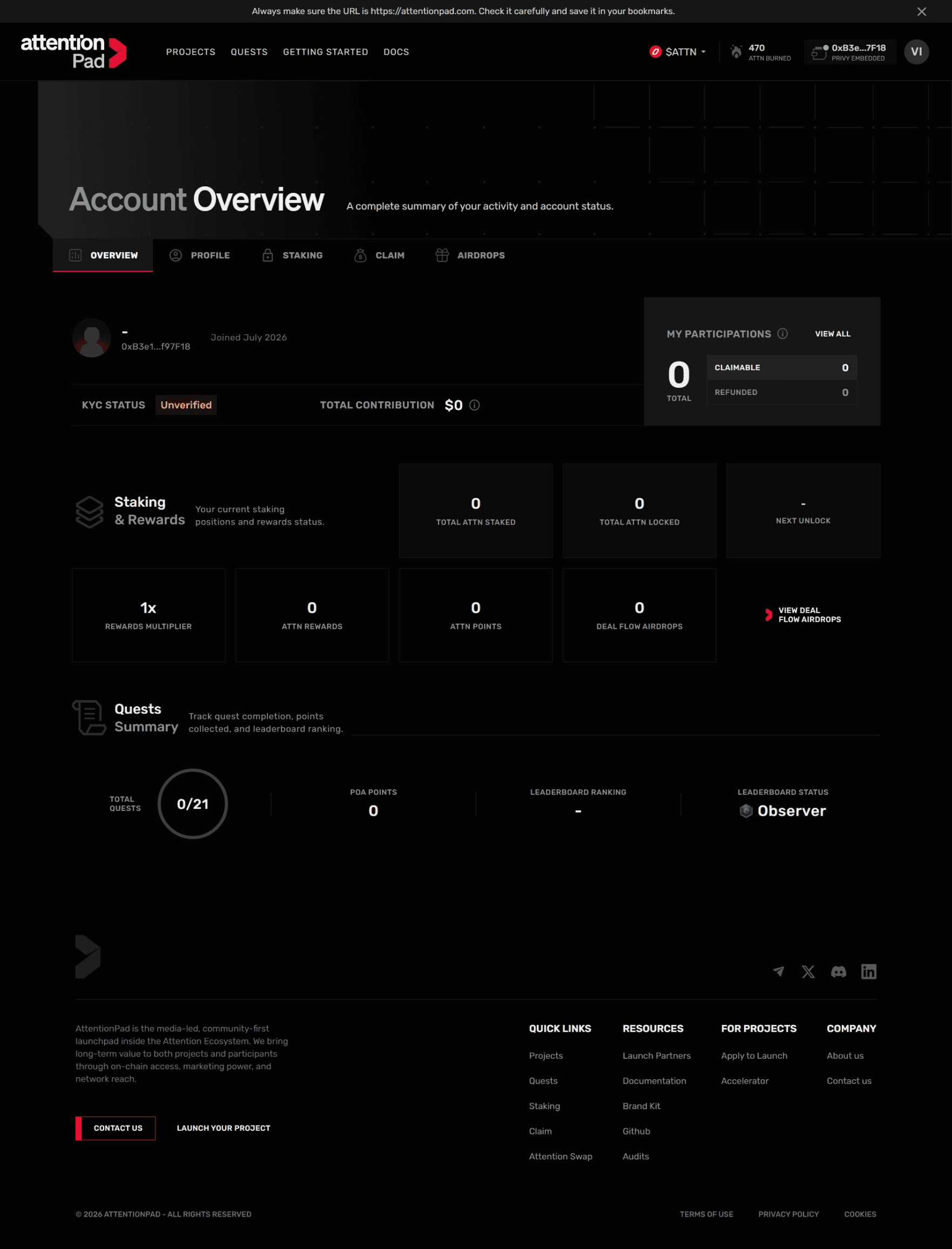
From the Account Overview page, you can:
- View a summary of your account activity.
- Edit your profile information.
- Review your KYC status.
- Stake $ATTN and track staking-related rewards.
- Claim or refund tokens from token sales you participated in.
- Track your ATTN Points and leaderboard status.
- Participate in Deal Flow Airdrops when eligible.
This page acts as your main account dashboard and helps you monitor your activity across AttentionPad.
Login Method Overview
| Login Method | Recommended Use |
|---|---|
| Simple account access without connecting a social profile. | |
| Fast login using an existing Google account. | |
| X / Twitter | Useful for users who want to connect their Web3 social identity. |
| Discord | Useful for community members and users active in ecosystem channels. |
| Wallet | Useful for users who want to connect directly with their Web3 wallet. |
Security Tips
Always make sure you are using the official AttentionPad website before signing in or connecting a wallet.
When creating or accessing your account:
- Check that the website URL is correct.
- Never share your wallet seed phrase or private keys.
- AttentionPad and Privy will never ask for your seed phrase.
- Be careful with links shared through social media, DMs, or unofficial channels.
- Use wallets and accounts that you control directly.
- Review wallet prompts carefully before approving any connection or transaction.
- Disconnect wallets from sites you no longer use or trust.
Account Recovery
Your account access depends on the login methods linked to your profile.
If you sign in with email or social login, make sure you maintain access to that email or social account. If you sign in with a wallet, make sure you keep secure access to that wallet. Adding an email address is recommended because it gives your account an additional recovery and communication method.
For account access questions or support requests, use the official channels listed in the Useful Links page.